Guide
Getting started
Eleven short steps. The first three take about two minutes; the rest you can read when you need them.
A 10-minute walkthrough with English captions: install, the robot buyer on Home, recipients (e-mail, Telegram, Slack, Discord), the test alert, plans, the storefront password, sensor products, pages, the Timeline and an incident.
1. Install the app
Open njX Store Monitoring & Uptime in the Shopify App Store and click Install. There is no account to create. The app asks for read permissions only — products, orders, themes, shipping, markets, checkouts — and never writes to your store. It reads your catalogue once, so it knows which products to walk with, and the first check starts by itself.
2. The storefront password, if there is one
A development store is always password-protected, and a store before launch often is. Copy the password from Online Store → Preferences into “Storefront password” on Get set up; the checks run behind it from the next one. The password is stored encrypted, used only to open the storefront, never shown again and removed when you clear the field. Without it, a password page is shown as a state on Home, not as an incident.
3. Connect a recipient
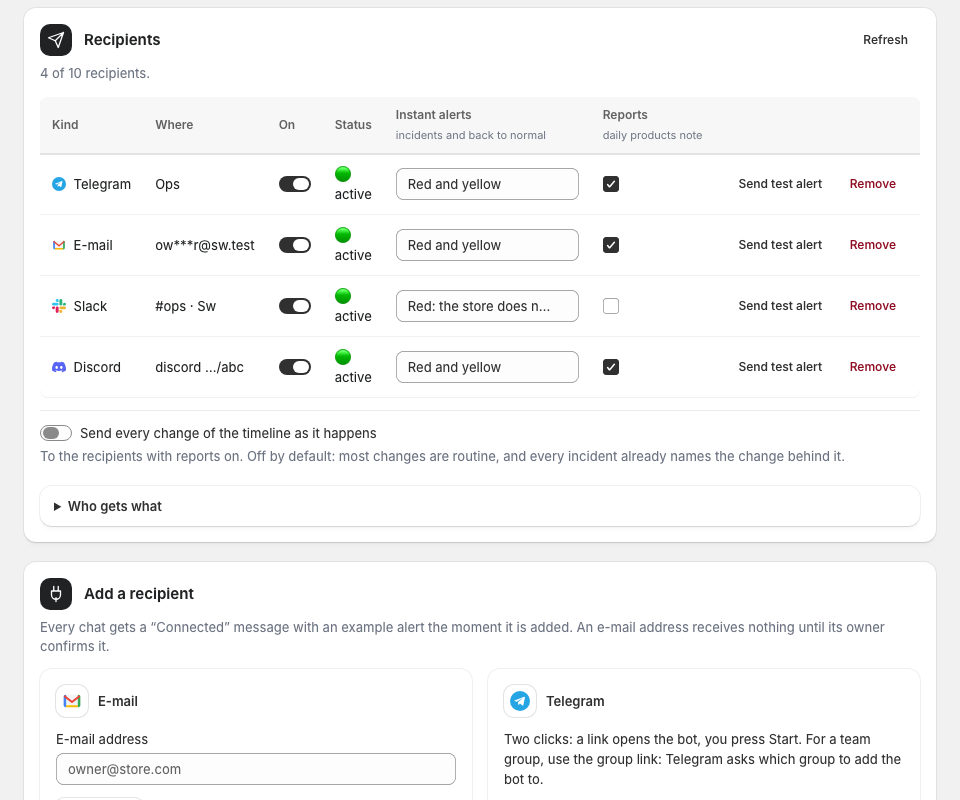
Recipients → Telegram gives you one link for yourself and one to add the bot to a team group. Slack takes Add to Slack or a channel webhook URL; Discord a webhook URL; an e-mail address receives nothing until its owner confirms it. Every recipient has Send test — an example incident arrives at once — and its own choice of what to receive: incidents and the message that the store sells again, red only or red and yellow, the daily products note, the weekly report.
4. Home: is the store selling
The status line says whether the store sells right now and when it was last checked. Under it, the last walks of the robot customer: home page, product, Add to Cart, checkout, each with its time and a grade from Fast to Bad. Check now runs a walk at once, three an hour. The tiles count the sensors, the watched products with a problem, the pages, today’s orders against the usual, and the uptime of the period you choose.
5. Incidents: what broke, and why
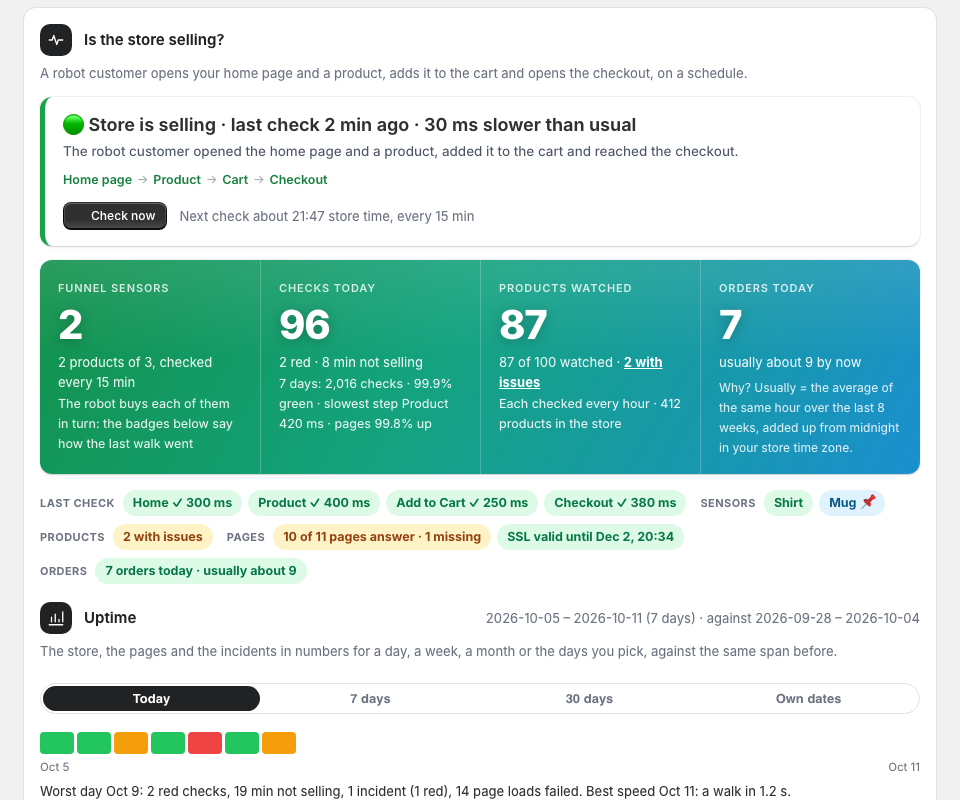
An incident opens after two failed checks in a row and closes on the first good one. It shows the step that failed, the evidence — the response code, the time, a piece of the page — and the causes: the changes of the 48 hours before it, the most likely first, each with its time and a link to the place in Shopify where it is undone. Mark as resolved closes one by hand; the next failed checks open a new one. The history comes by kind: the store, the orders, the pages.
6. Timeline: what changed in the store
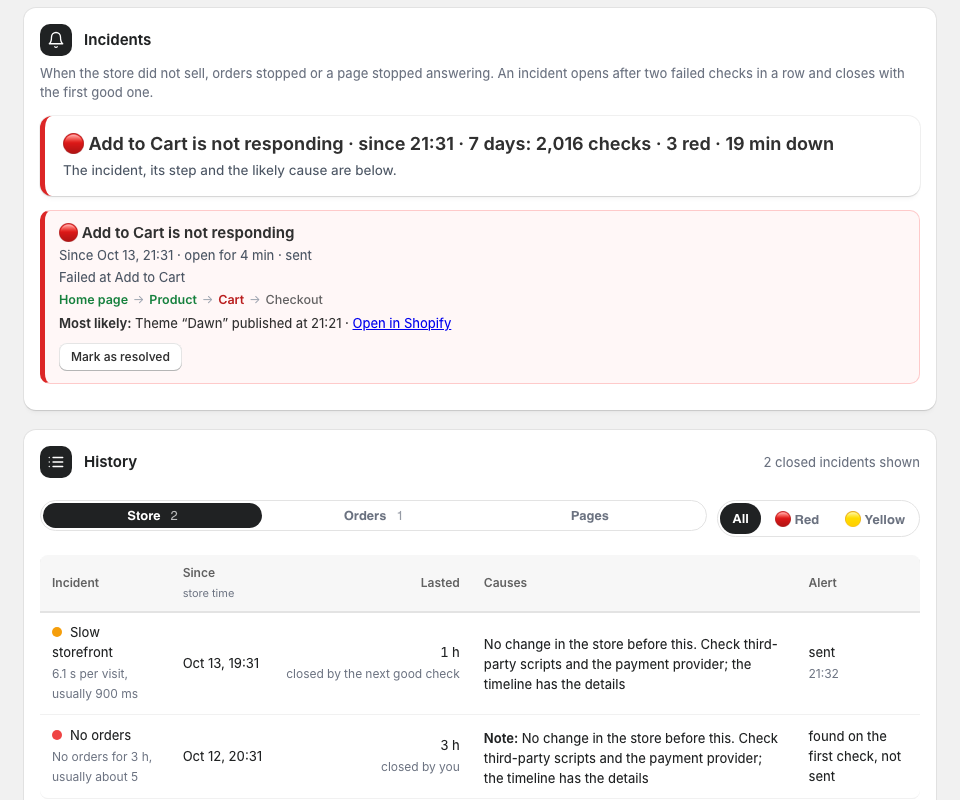
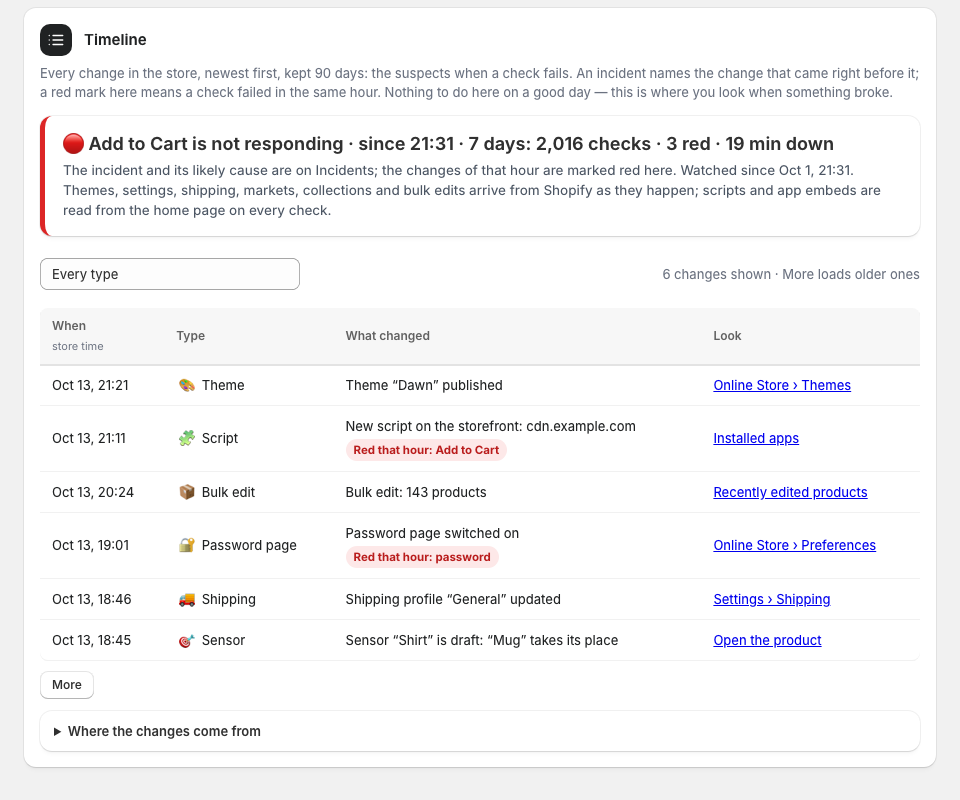
Themes published or edited, the domain, the currency, the password, shipping profiles, markets, products and collections, a sensor sold out, a script or an app embed that appeared on the home page or disappeared from it. Many product edits in a few minutes become one row. Every row says where to look in Shopify. On Pro, Every change sent to your chat sends each row as it happens.
7. Products: watched one by one
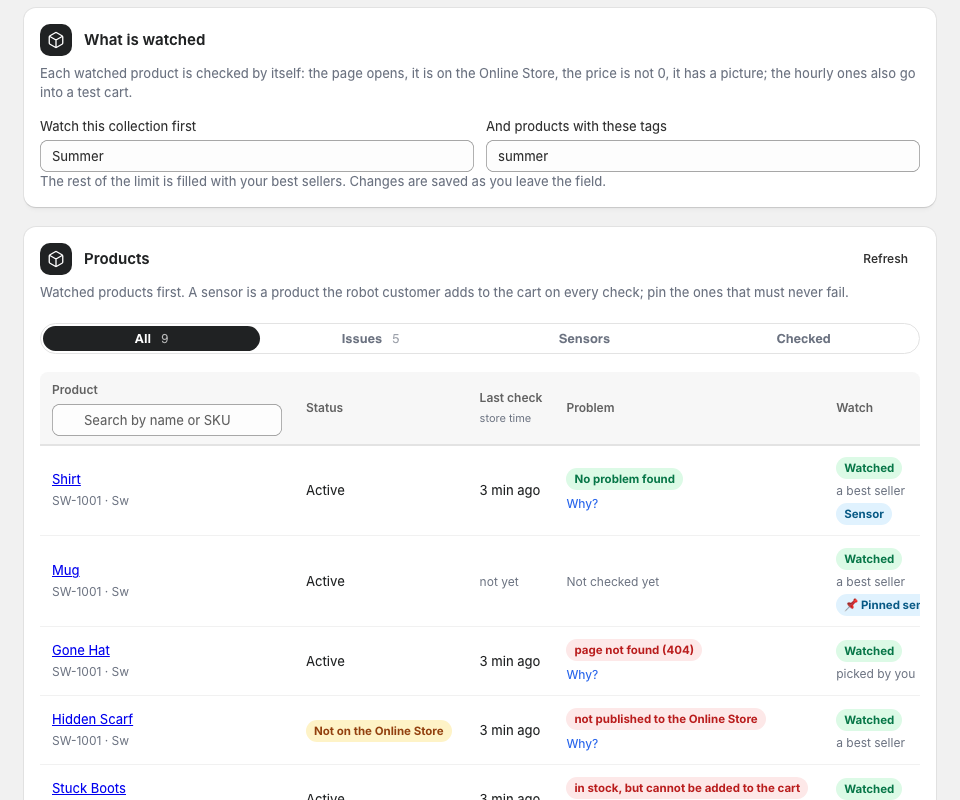
Watched products are checked on the schedule of your plan: once a day on Free, every hour on Pro, every 6 hours on Business with the top 100 every hour. The verdict is written in words — page not found, hidden from the Online Store, a price of 0, no picture, in stock but Add to Cart refuses it — with Why? under it. Sensors are the products the robot customer buys on every walk: pin the ones that matter, or let the app pick from your best sellers. Test now walks the store with that product at once, recording nothing.
8. Pages: every page a customer can land on
The standard pages — collections, cart, search, the policies, contact — plus any page of your own, loaded on the schedule of your plan with the response code, the time, a seven-day usual and the uptime. A page that answered before and stops answering on two loads in a row opens a yellow incident; a page that was never there is marked missing, not down. The certificate of your domain is read once a day: who issued it and until when it is valid.
9. Orders against the usual hour
On Pro and Business the app learns how many orders your store usually takes in each hour of the week, over the last 8 weeks, and says when they stop: a quiet three hours where there are usually four orders, checkouts that start but never turn into orders, a day far below the usual. Only the time and the total of an order are read. The first 14 days build the baseline; the tile counts down and the orders alerts stay off until then.
10. Free, Pro or Business
Free walks the store every hour with one sensor product, checks 30 products a day and 5 pages, and alerts two recipients on e-mail and Telegram. Pro walks every 15 minutes with three sensors, checks 100 products every hour and 20 pages, compares orders with the usual hour, presses Add to Cart in a real browser every hour, and adds Slack and Discord. Business walks every 5 minutes with five sensors, checks the whole catalogue up to 2,000 products and 50 pages, rechecks a no-button page in a browser before the alert, and sends the weekly report. Manage plan opens Shopify’s own plan page; billing is on your Shopify invoice.
11. Stop or change anything
Switch a recipient off and it receives nothing but keeps its place; remove it, or use the one-click unsubscribe in any e-mail. Unpin a sensor and the app chooses again; pause a page. Uninstalling the app deletes everything we hold about your store; nothing was ever written to it.