Guide
Getting started in about two minutes.
Everything below happens inside your Shopify admin, plus one Allow click in Slack or one copied link in Discord. No tokens, no code.
A 6-minute silent walkthrough: what the alerts look like in Slack and Discord, connecting a workspace, adding a Discord channel, the preview and languages, the daily report, your own message text, plans and support.
1. Install the app
Open njX Alerts for Slack & Discord in the Shopify App Store and click Install. There is no account to create. You need a Slack workspace where you can install apps, or a Discord server where you can create a webhook — either one is enough, and both can be used at the same time.
2. Connect Slack and pick a channel
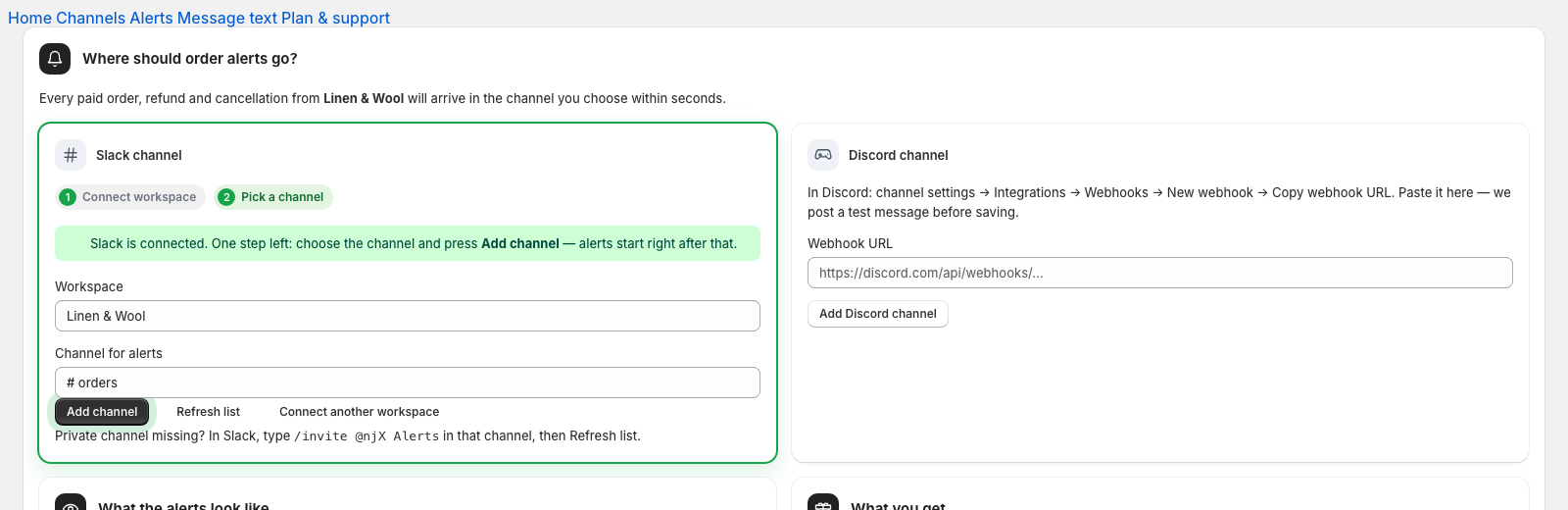
Click Add to Slack — Slack opens in a new tab; choose the workspace and press Allow, then come back to the app. The card now shows step 2: pick the channel and press Add channel. Public channels work right away. For a private channel, type /invite @njX Alerts in it first, then press Refresh list.
3. Or add a Discord channel
In Discord, hover the channel and click the gear (Edit channel) → Integrations → Webhooks → New webhook → Copy webhook URL. Paste it into the Discord card and click Add Discord channel. We post a test message before saving, so you know it works. An invite link (discord.gg/…) is not a webhook.
4. Get the first alert
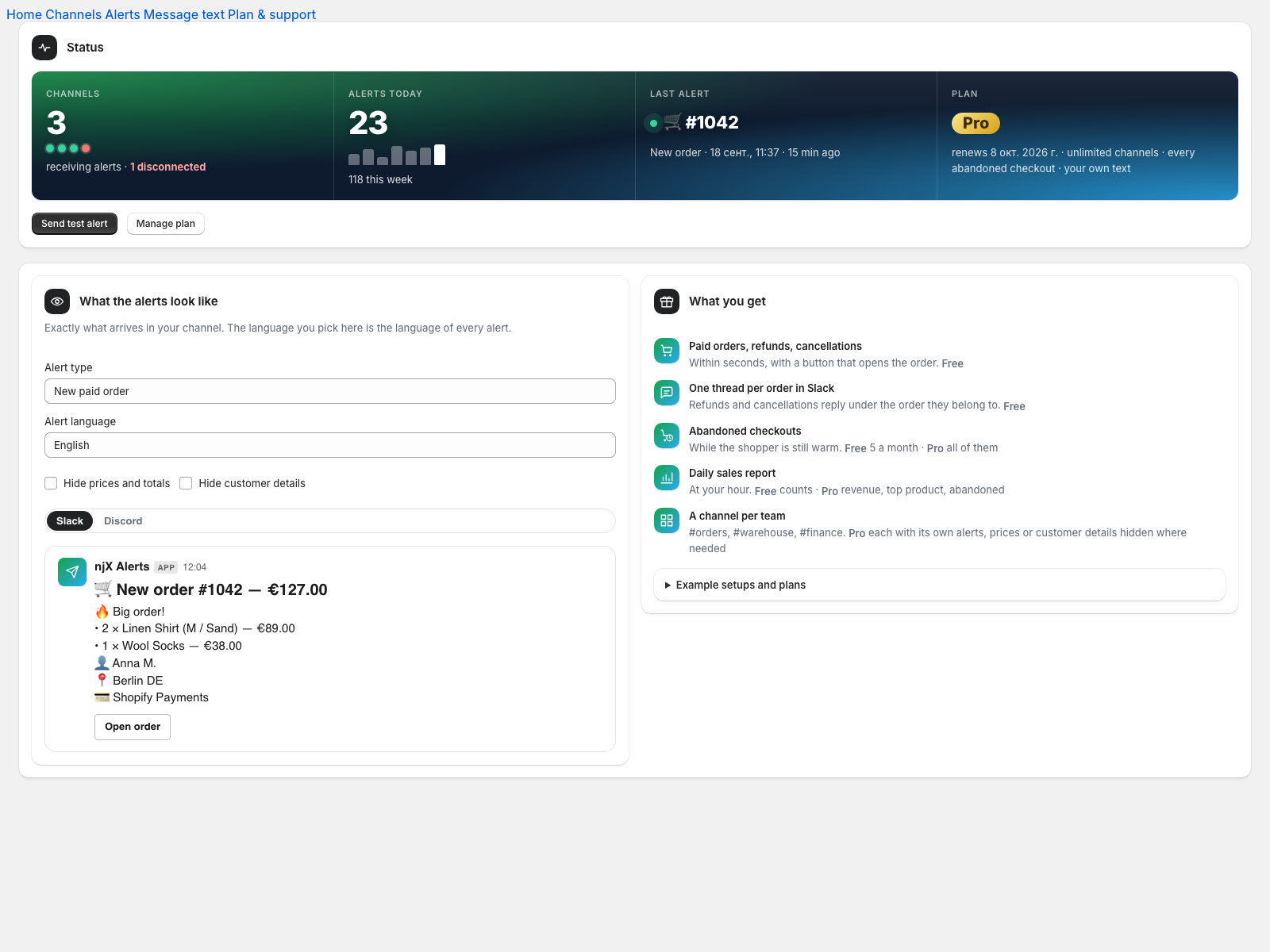
Click Send test alert, or wait for the next paid order. Every paid order, refund and cancellation arrives within seconds with a button that opens the order in your Shopify admin. In Slack, a refund replies in the thread of its order; a cancellation replies in the thread and also appears in the channel.
5. Give each channel its own alerts
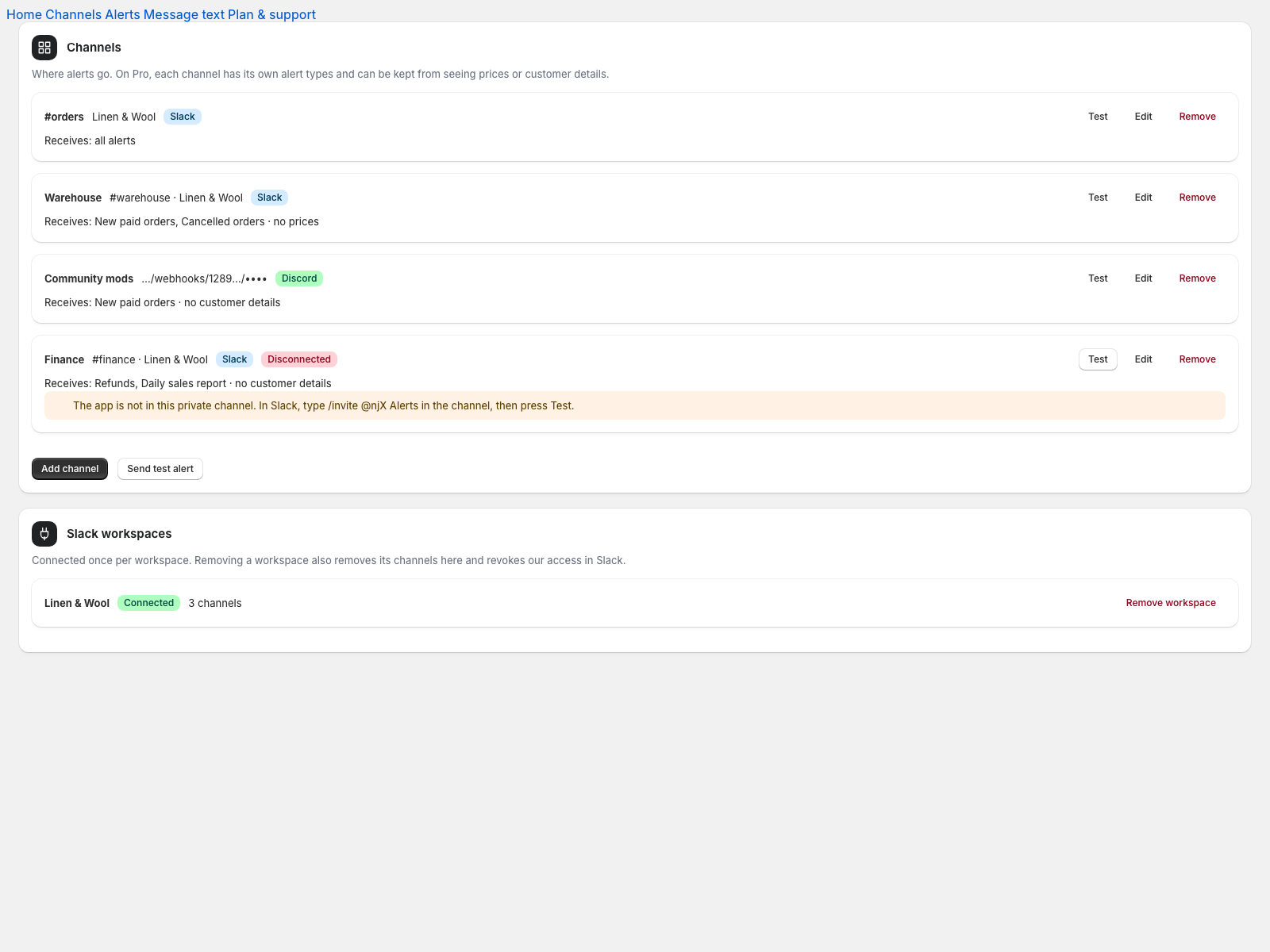
On Pro every channel gets its own set: #warehouse gets new orders and cancellations without prices, #finance gets refunds and the daily report without customer details. Test sends an example to that one channel. On Free the first two channels receive alerts; extra ones are saved as Paused on Free.
6. Decide what to send
Store-wide switches in Alerts turn each alert type on or off for every channel. Here you also set the daily report hour, the time zone, the abandoned-checkout delay and the 🔥 big-order threshold. “Send yesterday’s report now” delivers the report immediately.
7. Write it your way
On Pro you can rewrite the text of paid-order, cancellation and refund alerts. The first line becomes the heading; fields like {{order_name}} and {{total}} are filled from the order; bold, italic, code and links are converted to Slack and Discord formatting. The preview switches between Slack and Discord style.
8. Stop or change anything
Remove a channel in the app, or remove the whole Slack workspace — we revoke our access in Slack at the same moment. Manage plan opens Shopify’s plan page; billing is on your regular Shopify invoice. Uninstalling the app deletes everything we hold about your store.